From Claude to Duodeal via MCP
Let Claude AI work directly on your Duodeal deals


Connecting Duodeal to Claude lets you ask about your pipeline, draft quotations, and update deals in plain language, right inside your chat. Claude reads and acts on your real Duodeal data, so you get answers and actions in seconds instead of clicking through the app.
It turns Duodeal into a conversational assistant for your sales work. Ask Claude to 'summarize the deals closing this month', 'draft a quote for a new customer', or 'show my highest-scoring deals', and it works straight from your live workspace. You set it up once, and it stays available in every new chat.
Before you start
- The Claude desktop app (macOS or Windows) or Claude on the web. Connectors are added from Customize → Connectors in Claude.
- A Duodeal account you can sign in to. Claude connects with your own login and keeps your existing permissions.
- About two minutes. You only set this up once per device.
Steps
Open Claude's Connectors settings. In Claude (desktop app or web), open Customize → Connectors, click Add at the top right, then choose Add custom connector. (On a Team or Enterprise plan, an Owner adds it once from Organization settings → Connectors → Add → Custom → Web.)
Name the connector and paste the server URL. In the dialog, enter Duodeal as the Name and https://api.duodeal.app/api/mcp as the MCP server URL.
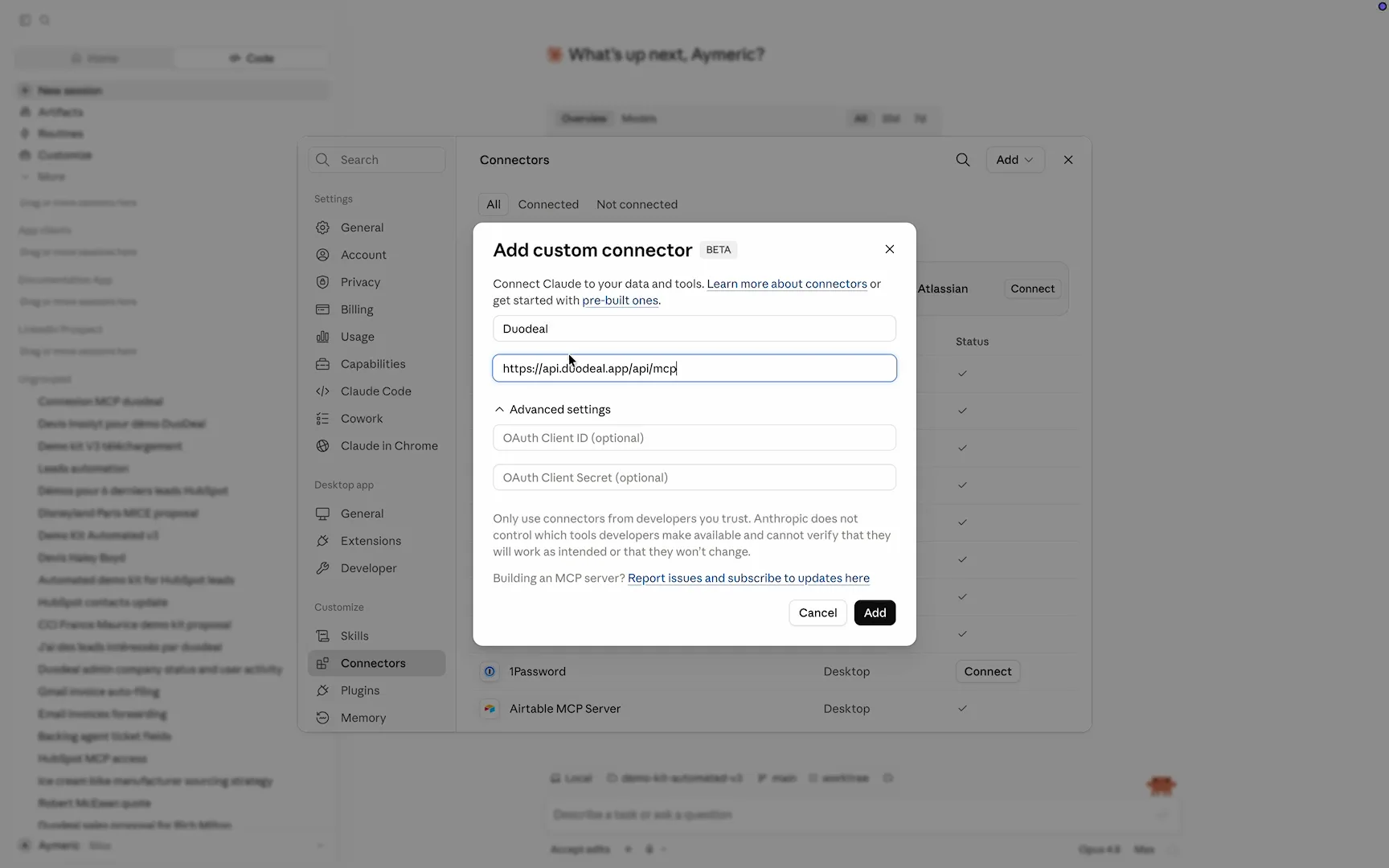
Name: Duodeal · MCP server URL Use your own OAuth client and paste the Client ID. Under OAuth client, choose Use your own OAuth client and paste 91a6c9381c0d3c789df532c005996490 into the Client ID field. Leave the secret blank, then click Continue.
Authorize Duodeal. A browser window opens asking to connect Claude to your Duodeal account. Sign in if needed, then click Allow.
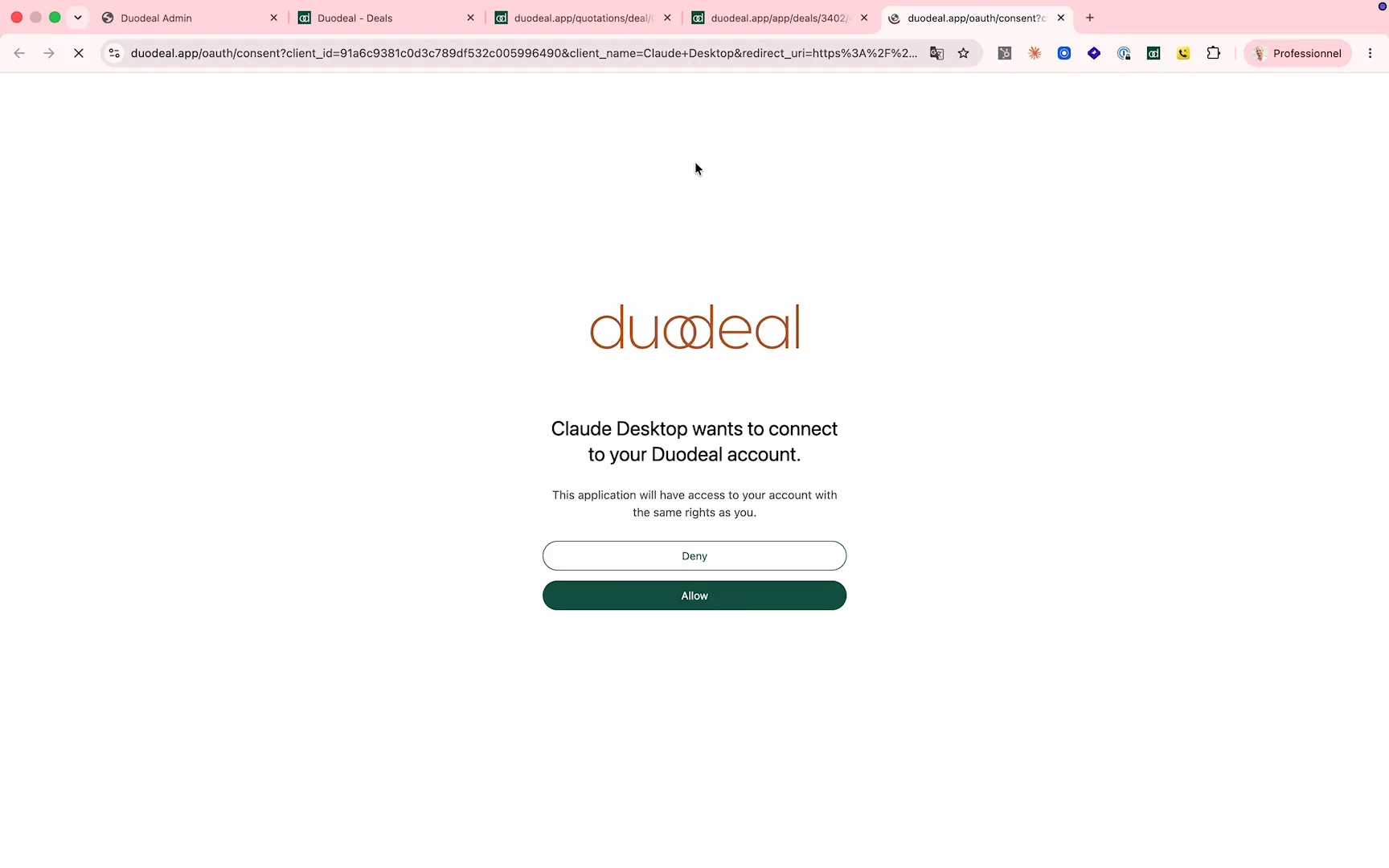
Click Allow to grant Claude access to your account Start using it: let Claude onboard you. Open a new chat and ask Claude to set up your Duodeal account. It walks you through your branding, your offers and your legal texts, writes them down so every later session starts from them, and builds a first quote template you can actually reuse. After that, ask it anything about your pipeline: 'List my open deals in Duodeal.'
Try asking Claude
| Ask Claude | What happens |
|---|---|
| 'List my open deals' | Returns your live pipeline with amounts, stages, and owners. |
| 'Draft a quote for a new customer' | Starts a draft quotation in Duodeal that you review and send. |
| 'Which deals have the highest score?' | Ranks deals by Duodeal's hot-deal score so you know where to focus. |
| 'Summarize my latest deal' | Pulls the line items, contact, and status into a short summary. |
| 'What did I win this month?' | Filters and totals your closed deals for the period. |
| 'Add a note to the deal with Acme' | Writes your note straight onto the deal so the record stays current. |
| 'Which deals have no activity this week?' | Surfaces stalled deals so nothing in your pipeline slips. |
Example
In practice, open a new chat and type 'Show my deals closing this month, sorted by amount'. Claude reads your live pipeline and lists them in seconds, so you can plan your week without opening Duodeal.
Frequently asked questions
- Is my Duodeal data safe?
- Yes. The connection uses a standard OAuth authorization with your own login, so Claude only accesses what your account can access. Nothing leaves your workspace, and you can revoke access at any time.
- Do I need a paid Claude plan?
- Custom connectors are managed under Customize → Connectors in Claude. If you do not see the Connectors section, your plan or workspace policy may not include custom connectors yet, so check with your Claude admin.
- I added the connector but Claude does not see my deals. What now?
- Make sure you finished the browser step and clicked Allow. If the popup was blocked, reopen the connector and try again, then start a new chat, since connectors load per conversation.
- Which Claude apps does this work in?
- It works in the Claude desktop app and on the web, anywhere Customize → Connectors is available. The setup is the same in each.
- Can I disconnect Duodeal later?
- Yes. Open Customize → Connectors in Claude and remove Duodeal. You can also revoke the authorization from your Duodeal account settings.
- Does connecting change anything in Duodeal?
- No. It only lets Claude read and act with your existing permissions. It does not change your data, your team, or your settings.